Computer Applications
Answer
We can follow the given steps to save a presentation by using the password protection:
Step 1 — Click on the File tab and select the Save option from the drop-down menu.
Step 2 — The Save As dialog box appears.
Step 3 — Click on the drop-down arrow of the Tools tab and select the General Options.
Step 4 — The General Options dialog box will appear, displaying the two fields:'Password to open' and 'Password to modify'.
Step 5 — Type the desired password in the Password to open text box. Click on OK.
Step 6 — The Confirm Password dialog box appears. Re-enter the password in order to confirm the password. Then, click on OK.
Step 7 — If the password matches, the presentation is saved with a password protection. If the passwords do not match, we receive the prompt message to enter the password again.
Related Questions
What are the different formatting options present in Powerpoint 2010?
Discuss the different slide views available in PowerPoint 2010.
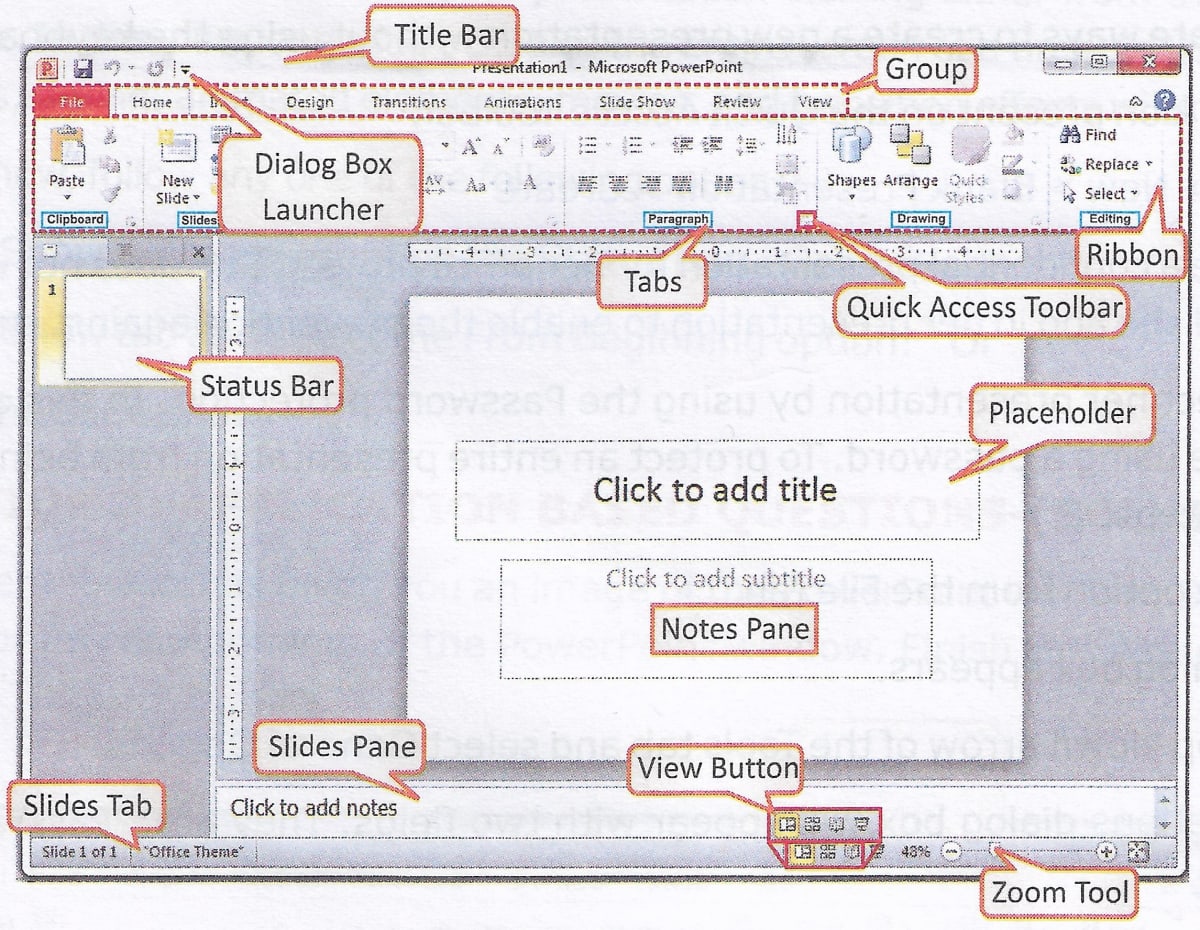
The computer teacher has given an image of the PowerPoint window to your friend Prateek and asked him to label all its components. The teacher has found some errors and has asked you to correct them. Finish this task by correcting the labelling:
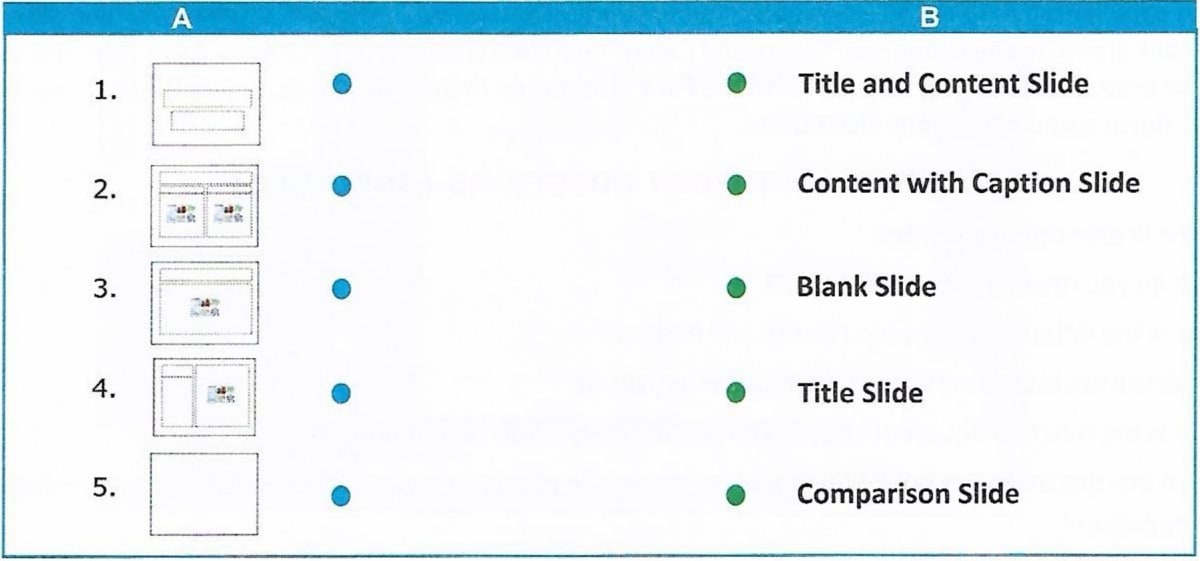
Your teacher has asked you to match the given slide layouts with their names: