Computer Applications
Create the following worksheet in Ooo Calc.
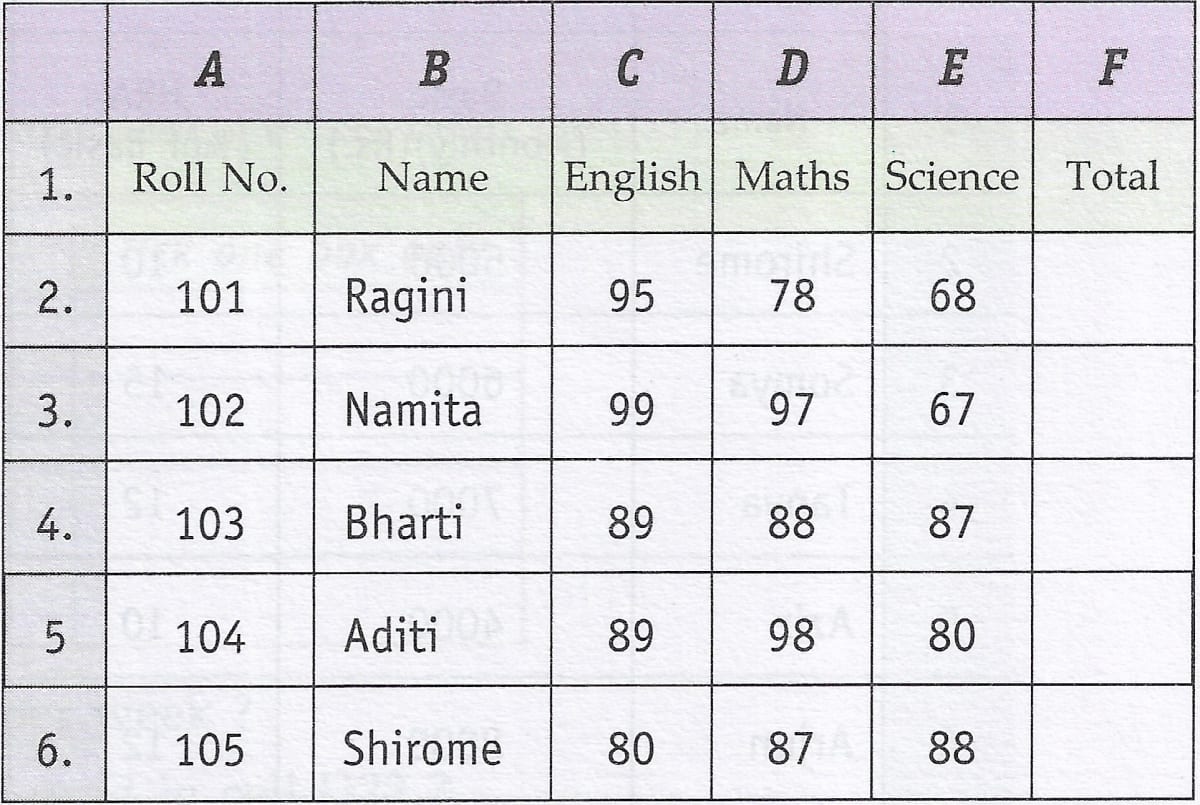
(i) From the above worksheet find out the average marks for the entire class.
(ii) Now copy the range consisting of the mentioned data (including total, average & class average) to a new location. Find out whether the cell references change or not.
(iii) Now move the original data range to a new location. Find out whether the cell references change or not.
(iv) Again move back the data to its original position and make changes in the marks obtained by students. Notice total, average and class average. What happens ? Why does this happen ?
OOo Calc
23 Likes
Answer
(i) The average marks for the entire class is 86.

Explanation
We follow the following steps to find the average marks for the entire class:
Step 1 — Find the total marks for each student.
Select F2 and write the formula =SUM(C2:E2). This formula will calculate the total marks of a student.
With F2 selected, dragging the cell handle from F3 to F6 will copy the formula to the cell range [F3 : F6].
Step 2 — Find the average marks for each student.
Select G2 and write the formula =AVERAGE(C2:E2). This formula will calculate the average marks of a student.
With G2 selected, dragging the cell handle from G3 to G6 will copy the formula to the cell range [G3 : G6].
Step 3 — Find the average marks for the entire class.
Select cell G7 and write the formula =AVERAGE(G2 : G6).
(ii) When we copy the range consisting of the mentioned data to a new location, the cell references change according to the relative position of the cells.

(iii) When we move the original data range to a new location, the cell references change according to the relative position of the cells.

(iv) When we make changes in the marks obtained by students, the Total, Average, and Class Average values will automatically update to reflect the changes.
The reason the Total, Average, and Class Average values update is because they are formulas that reference the student's marks. When we change a student's marks, the formulas that use those marks automatically recalculate based on the new values, thus updating the final calculations.

Answered By
11 Likes
Related Questions
What is the difference between the following commands :
Edit → Delete Contents → Delete all and
Edit → Delete Contents → TextEdit → Delete Contents → Text and
Edit → Delete Contents → FormatsEdit → Delete Contents → Text and
Edit → Delete Contents → Notes
Create the following worksheet and save the workbook as WAGES.ods.

(i) Find out the number of days each worker has worked, by subtracting date on which worker was hired from today's date.
(ii) Calculate Gross wages for each worker. The gross wages can be calculated by using the following formula :
Gross wages = No. of days worked * Pay rate
Clear the copied data range (do not touch the 23. original data range).
Create the following worksheet in Ooo Calc :