
Computer Applications
An Area chart depicting the trends in Bills over different months is shown along with its source data. Apply the formatting effects given below to the Area chart then print this chart along with the worksheet data.
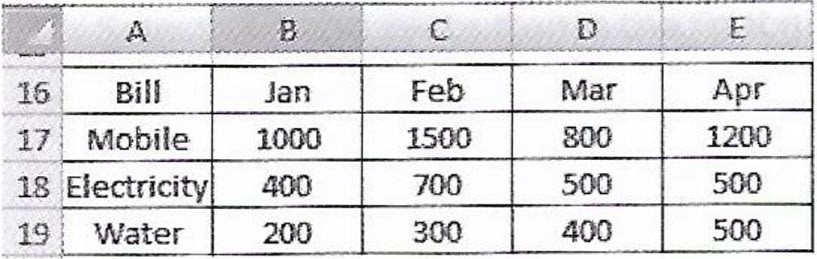
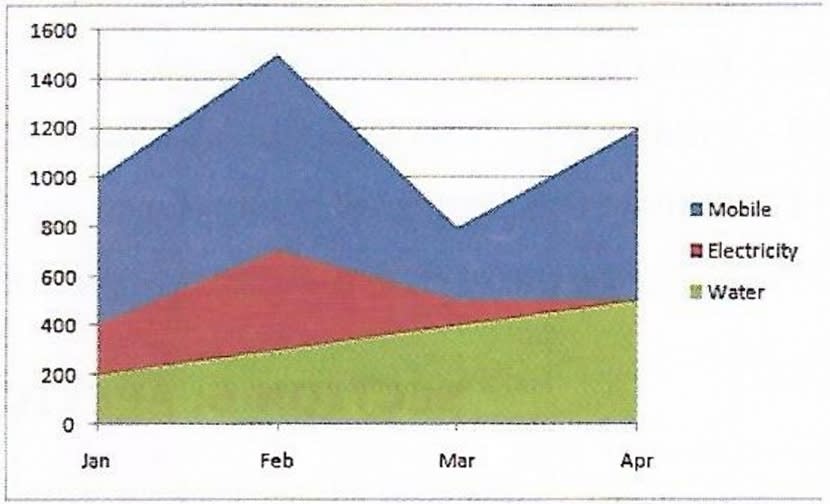
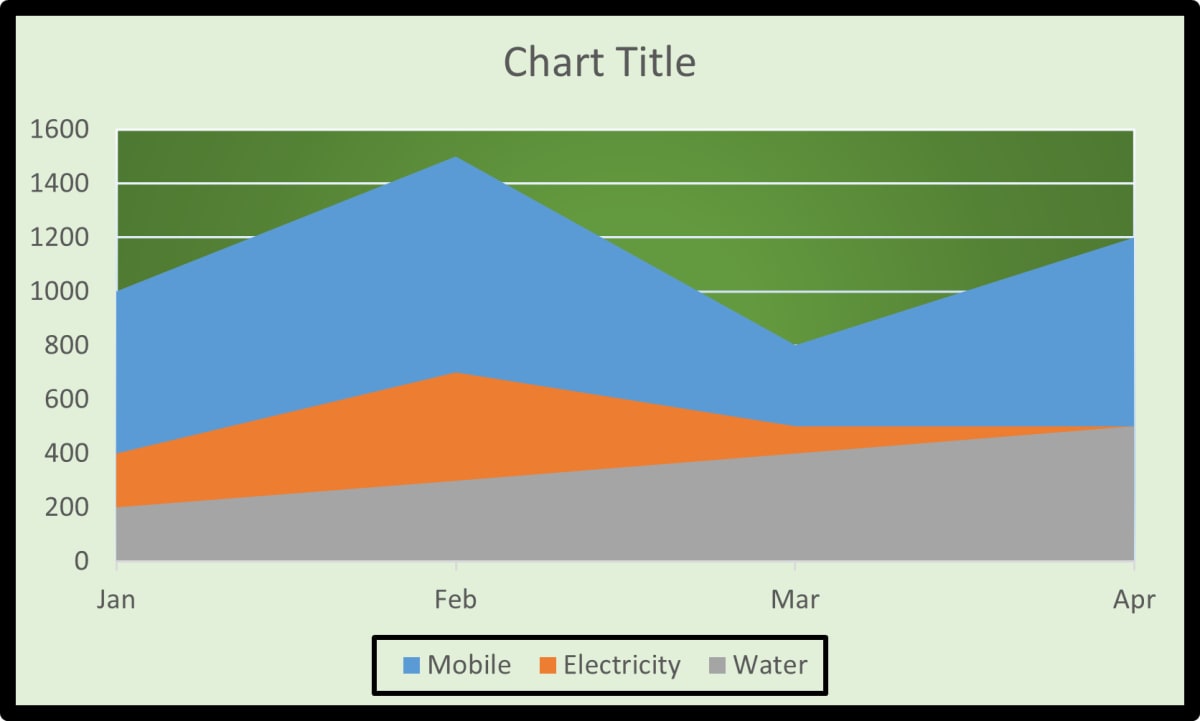
(i) Apply a border to the Chart area and also apply a background color of your choice.
(ii) Using the Gradient Fill option, set the background for the Plot area as 'Moss'.
(iii) Apply a border to the Legend and position it at the bottom of the chart.
MS Excel
4 Likes
Answer
(i) We can follow the given steps to apply a border to the chart area:
Step 1 — Right-click on the Plot area and select the Format Plot Area option. The Format Plot Area dialog box appears.
Step 2 — Select 'Border Styles', 'Border Color', 'Shadow', etc.
Step 3 — By default, the Fill tab is selected. Select the Solid fill option in the right pane.
Step 4 — Click on the Color button and select the desired colour from the drop down menu.
Step 5 — Click on Close button.
We can follow the given steps to apply a background color of our choice:
Step 1 — Click on the chart to select it.
Step 2 — Right-click and choose "Format Chart Area."
Step 3 — In the Format Chart Area pane, choose 'Fill & Line.'
Step 4 — Click on 'Fill' and choose the background color.
(ii) We can follow the given steps to set the background for the Plot area as 'Moss':
Step 1 — Click on the plot area of the chart.
Step 2 — Right-click and choose "Format Plot Area."
Step 3 — In the Format Plot Area pane, go to the Fill options.
Step 4 — Choose 'Gradient Fill' and set the gradient colors, selecting 'Moss' as one of the colors.
(iii) We can follow the given steps to apply a border to the Legend and position it at the bottom of the chart:
Step 1 — Click on the legend to select it.
Step 2 — Right-click and choose "Format Legend."
Step 3 — In the Format Legend pane, go to the Border Color option and choose a border color. Adjust the Border Styles and Weight as needed.
Step 4 — To position the legend at the bottom, right-click and choose 'Legend Options'.
Step 5 — Click on Bottom in the Position option.
Answered By
1 Like
Related Questions
Describe the text formatting features of MS Excel and how are these useful.
A chart displaying the subject wise attendance of four students and its source data have been given to you. Answer the following questions based on them:
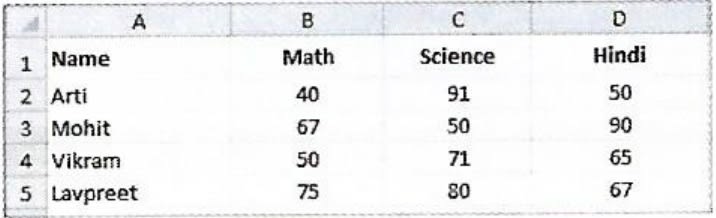
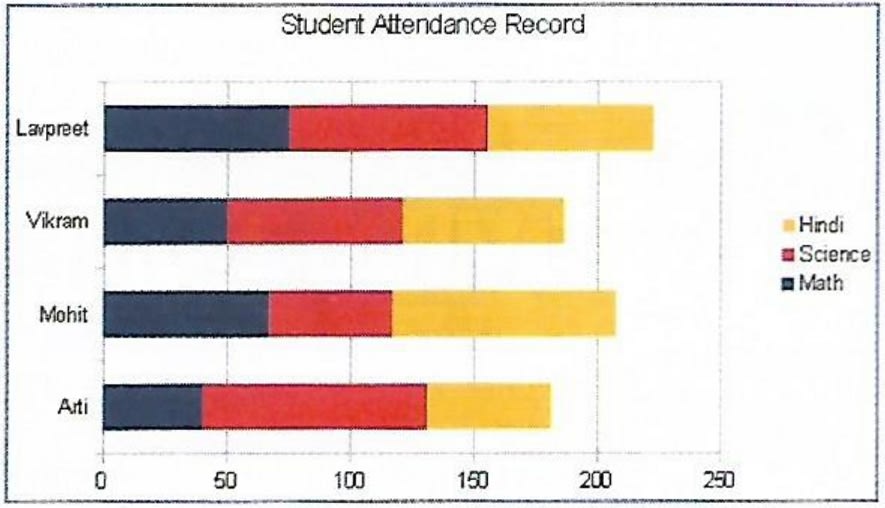
(i) Identify the Type of chart.
(ii) What is the title of the chart?
(iii) List the cell references of the three cell ranges used to produce this chart.
(iv) Suggest a suitable label for both category axis and value axis.
A table containing descriptions of different types of charts is given below. Names of some charts are given below within the bracket. Fill them in front of their respective descriptions and complete the assignment.
[Stock, Area, Bar, Pie, Line, and Radar]
Name Description It displays data in the form of long rectangular rods also called bars. This chart displays data in the form of a circle. It emphasizes the magnitude i.e., the volume of change over time. It is designed specifically for plotting data values related to stocks and shares. It is in the form of lines and is used to illustrate trends in data at equal intervals. It is a type of chart that resembles a spider net. A 3D line chart on Employee Payroll System is given below. Apply the following formatting effects to the chart:
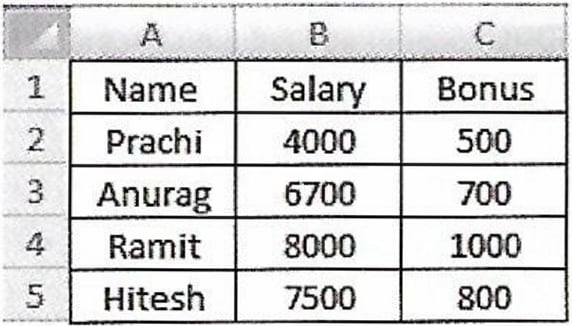
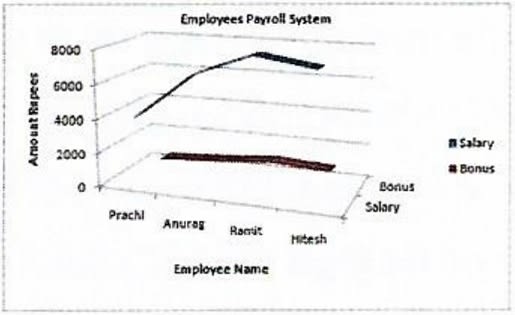
(i) Change the Chart Title to 'Employee Salary and Bonus'.
(ii) Change the title of X axis to 'Names' and Y axis to 'Amount'.
(iii) Change the Font of Chart Title to 'Tahoma', Font size as 16, Font style as Bold and Font color as blue.
(iv) Change the scale for Y axis and display the values between 100 to 8500.